
Funding Entry / Position Funding
I followed the link to a funding entry transaction provided in the email notification, but I can’t see the relevant effective date. What do I do?
The link to funding entry transactions provided in the system-generated emails will, by default, only show you the effective dated rows that are currently active, or future dated. If the funding entry was inserting a retroactive effective date, it will not be visible by default from the email link. You can view all rows associated with this funding entry by selecting the ‘Include History’ button at the bottom of the page.
We generally recommend searching for the transaction via the Funding Entry page or via the Worklist so you can see all rows in the transaction.
Does the initiator have to start from scratch to fix a denied position funding transaction? Is there a copy function?
You can copy a denied transaction into a new transaction. Search for the denied transaction via the Funding Entry page. At the top of that denied transaction, there is a ‘Copy to new transaction’ button.
Does a retro pay change affect position funding?
Maybe. Please explore the following job aid: Explainer - Automated Funding Reallocation Process
How many decimal places are allowed on the pay distribution % field (funding entry page)?
The Funding Entry page uses 6 decimal places.
I need to submit Funding Entry for a position. Which DeptID should I enter to start the transaction?
The DeptID the system is asking for here is the position/Workforce Administration DeptID, not the GL/Chartfield DeptID. You are only able to enter the DeptID shown in Position Data. If you try to enter a DeptID not given in the Position Data, you will get an error message. If you know the DeptID you entered is the ‘correct’ new DeptID for that position, you need the Workforce Administration transactors to make that update to the position before you can start your Funding Entry transaction.
How do AWE notifications work for Position Funding Transactions?
The initiator will receive a confirmation email notification of their submitted transaction, and another email when the transaction is approved or denied.
A user with the Funding Entry approver role, and with row level security to access the transaction will receive an approval request notification when the transaction is submitted. Approvers can access the transaction via the link provided in the email, but note, the link will only display the effective dates in that position’s funding entry that are currently active. If the entry was a retroactive entry, those rows will not be visible from this email link. We recommend searching for the transaction via the Funding Entry page or via the Worklist to be able to see all rows in the transaction.
What is the rounding system for Pay Distribution? Will the RA be able to enter Pay Distribution down to several decimals?
Pay Distribution uses six decimals. It looks like this: 1.000000
Where can I find guidelines from campus around what documentation should be included/attached on particular transactions?
The Controller's Office would be responsible for these guidelines. Please reference the following job aid for additional guidance: GL: Documentation for Grants & Compliance Checklist
Can an approver edit the position funding transaction before approval?
No. The approver should deny the transaction and the initiator should make the changes and resubmit the transaction for approval.
Does the Effective Date for position funding matter?
Yes! Effective Date for position funding must be equal to or later than the Effective Date of the position. The position must be created before you can fund it. Additionally, position funding Effective Date should be prior to the hire Effective Date in order to avoid any pay going into suspense. The Effective Date you use may also be dependent on the start/end dates of various grants.
Note: Funding Entry records are specific to three values: Position Number, Position DeptID, and Fiscal Year. If the position is reorganized to a new Position DeptID, a new Funding Entry will be required.
What is the Pool ID field on the Position page?
Position Pool ID is used by the Work-Study unit in Financial Aid (FASO) to tie a position to an employee’s work study award.
For more information, refer to the Workstudy Office. Office of Financial Aid & Scholarships.
What does “MCOP" mean in the context of funding entry?
MCOP stands for “Multiple Components of Pay".
Some positions at UC Berkeley include multiple components of pay (MCOP) and some positions are funded by contracts and grants that have restrictions that impose a salary cap. MCOP Funding Entries ensure these salaries are distributed correctly between capped and supplemental funding sources.
You’ll use the Salary Cap / MCOP Funding Worksheet when:
- Funding includes a capped fund (e.g., NIH, CIRM).
- The position is salaried (not biweekly).
- The position is filled (not vacant).
An academic employee’s position is funded using a capped fund, and their monthly salary exceeds the cap limit for that fund, but there is no available funding source for the over-the-cap earnings. How should the “cap gap” funding be processed?
If there is no funding source for the over-the-cap earnings, the employee’s earnings distribution should be updated in Job Data, distributing the over-the-cap amount to the GAP earn code. This GAP earn code is not paid out, bringing their actual monthly earnings up to, but not exceeding, the cap rate.
On the Funding Entry side, you will still need to use the Salary Cap / MCOP Funding Worksheet. In the funding preview page you will see a N-OTC indicator assigned to the capped fund distribution, and a Y-OTC line with $0.00 distributed to it. When you submit this to the main funding entry page, the Y-OTC row will be removed by the system, along with the N-OTC indicator on the capped fund distribution.
For academics when the incumbent’s salary funding is sourced from a capped fund, exceeds over-the-cap (OTC) fund and the OTC default chartstring should not be used, how should the funding be processed?
The earn code, "GAP" should be used for the amount that is over the cap. This step would act as a reversal of the amount above the salary cap.
When does a payroll cost go to suspense?
Payroll will go into suspense if:
-
No Funding Entry was set up for the position
-
The position is no longer in the department for which funding was entered
-
Chartstring(s) in the Funding Entryprofile are no longer active
Note: look at Chartfield 1 to understand why payroll went into suspense:
-
900000: FE was not attached to the position
-
900001: chartstring(s) is no longer active
Is there approval routing at the funding level?
No. Funding Entry approval routes based on the Job Data department, not based on the GL DeptID.
How do we specify different FAU(s) for an employee’s recurring additional pay?
If an employee has earnings on an Earn Code not specified in their Funding Entry (like SAS or STP), the system will use the funding source(s) on the default blank Earn Code row in that Funding Entry. You are able to specify different funding sources for different earn codes in Funding Entry.
For more information, explore the Job Aid: How to Process a Staff Stipend on a Different Chartstring
What are the reasons why funding would default to the general fund, other than the expiration date of a current fund?
-
Position Funding was never set up for the position.
-
A chartstring may be valid at the time of entry in Position Funding, however, it may become invalid prior to Commitment Accounting Actuals/General Ledger batch processing. This instance would result in an edit error being flagged and a default chartstring would be used.
-
A position’s department changed and funding was not set up for the new position/department pair.
Can the funding end date occur prior to the appointment end date?
Yes. If the funding end date expires, the system will use the suspense account.
In GL, does the system validate each field or the full chartstring?
Both. The system performs individual chartfield validation, and it also validates the full chartstring.
Note: In Payroll, the system will only validate individual chartfields, not the full chartstring.
Can the effective date be retroactive?
Yes, as long as the funding effective date is between the budget begin and end date. You can enter a change in funding with an effective date in the past (e.g. use yesterday’s date) as long as that is a valid date for the position.
It is best practice to backdate to the appropriate Effective Date to ensure any retro pay is paid out correctly.
How far forward/in the future can I enter the effective date?
The funding effective date should be between budget begin and end date. There is no stated limitation for how far in the future (as long as it’s during the period in which the position is active).
How many distributions can I have?
There is no limit to the number of distributions that can be entered.
What is the process if hours are distributed to the wrong chartstring(s)?
If hours were distributed to the wrong Chartstring (aka Full Accounting Unit / FAU), the department should initiate a Salary Cost Transfer transaction to move the expenses to the correct chartstring(s).
Best practice would be to check the Funding Entry for the position(s) to ensure it is corrected to avoid the same issue for future pay periods or any retro pay.
Can we create a position before funding is established?
Yes. However, a position must be created in UCPath before you can apply funding to it.
I'm trying to upload a document or type in a field and I'm getting a pop-up error message, "UCPathApplicationError.” What should I do?
UCOP’s web application firewall is flagging and blocking your document or text. If you receive this error, please email UCBUCPath@berkeley.edu, providing the following information:
- Screenshot of error message, including the Support ID number (located at the bottom of the pop-up)
- A copy of the document you were trying to upload, or a copy of the text added to the text field
- The page you were on when the error message appeared
UCB UCPath Operations team will report this to UCOP IT, who will evaluate the text or document and make adjustments to the firewall settings to allow the text/document. UCOP IT will inform UCB UCPath Ops that you can try again. (warning: this might take a few days)
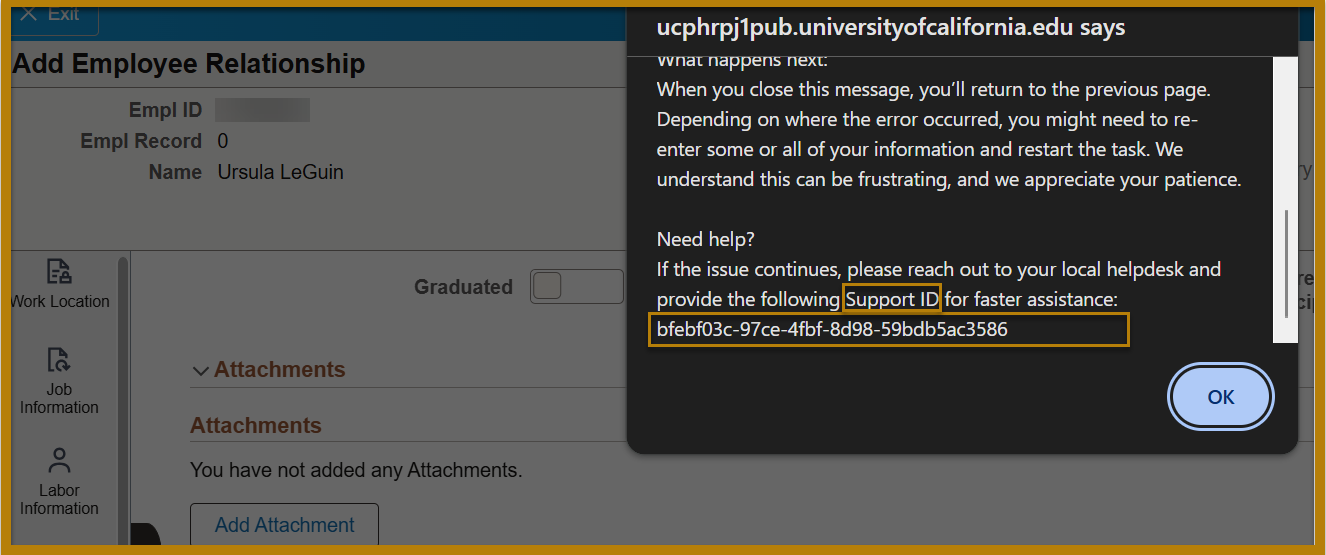
Image description: This example screenshot includes all the necessary information needed to report this error. Included in this screenshot is the employee’s browser window, with the page they were on when the error message fired (the “Add Employee Relationship” page), the add document popup window, and the error message text:
“UCPathApplicationError
There was an issue with the information you entered.
How to fix it:
-
Please double-check your entry and try again
-
Avoid using special characters like quotation marks, symbols or backslashes, as they can sometimes cause errors
If you copied and pasted information into the form, hidden characters may have been included. For the best results, try typing the information directly into the form
What happens next:
When you close this message, you'll return to the previous page. Depending on where the error occurred, you might need to re-enter some or all of your information and restart the task. We understand this can be frustrating, and we appreciate your patience.
Need help?
If the issue continues, please reach out to your local helpdesk and provide the following Support ID for faster assistance: 0l3c4f7d-63198-4fg3-01b5-3de4320c3b68”
How can we add a Funding Entry with an Effective Date prior to the earliest effective dated row in the employee's Funding Entry profile?
If you need to add a Funding Entry with an Effective Date prior to the earliest effective dated row in the employee's Funding Entry profile, a Mass Funding Entry File (E-703) must be submitted.
Note: Access to the mass file is limited to Contracts & Grants. Explore the Mass Funding Entry File FAQ for more info.
Best Practice: when funding new positions, backdate the Effective Date of that funding to the Effective Date of the position creation. If you use an Effective Date for Funding Entry equal to the hier date, and there is a change in the hire date, you may need to have a Mass File submitted to correct the funding effective date.
Is there mass Funding Entry functionality?
Yes - Access is Limited to Contracts & Grants Office.
Process:
- Transactors need to coordinate with their Region to have them send a file to Contracts and Grants.
- All included Funding Entries need proper departmental review and approval process.
- For C&G, PI (or PI's delegate) approval is always required.
- BRS is responsible for retaining approval documentation to support auditing.
Note: the mass file is also how we can add a Funding Entry with an Effective Date prior to the earliest effective dated row in the employee's Funding Entry profile.