
Final Pay Dashboard & Activity Guide
Final Pay transactions are used to submit final hours and takes and to pay out accruals for employees separating from their last active job(s).
These transactions can be completed via the Final Pay Dashboard page, using a Final Pay Activity Guide.
I'm trying to upload a document or type in a field and I'm getting a pop-up error message, "UCPathApplicationError.” What should I do?
UCOP’s web application firewall is flagging and blocking your document or text. If you receive this error, please email UCBUCPath@berkeley.edu, providing the following information:
- Screenshot of error message, including the Support ID number (located at the bottom of the pop-up)
- A copy of the document you were trying to upload, or a copy of the text added to the text field
- The page you were on when the error message appeared
UCB UCPath Operations team will report this to UCOP IT, who will evaluate the text or document and make adjustments to the firewall settings to allow the text/document. UCOP IT will inform UCB UCPath Ops that you can try again. (warning: this might take a few days)
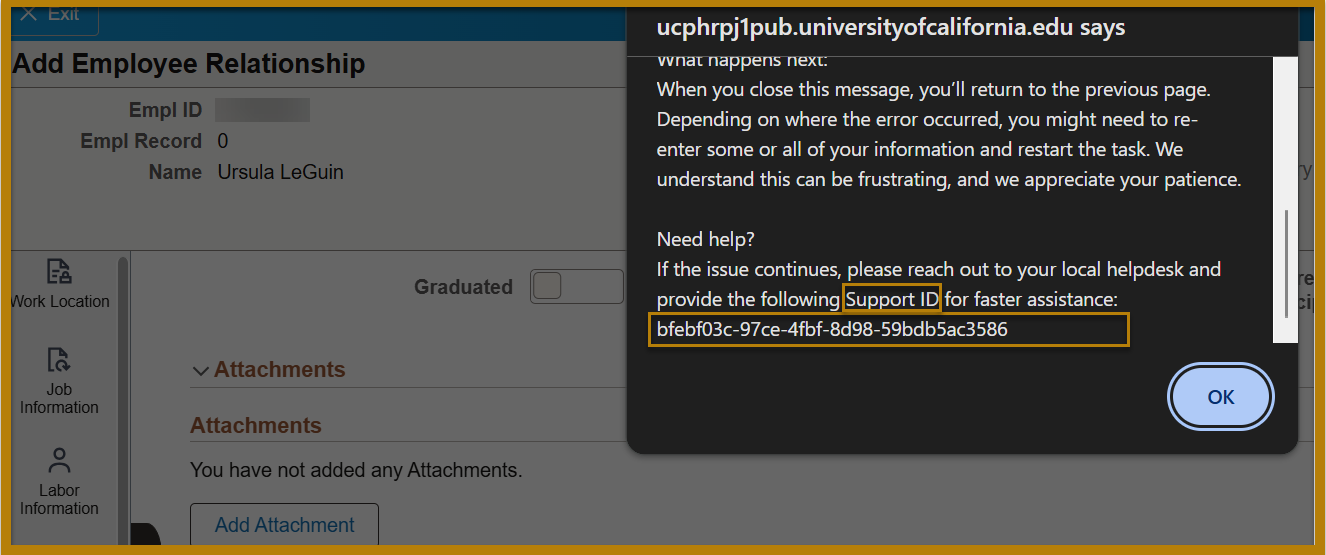
Image description: This example screenshot includes all the necessary information needed to report this error. Included in this screenshot is the employee’s browser window, with the page they were on when the error message fired (the “Add Employee Relationship” page), the add document popup window, and the error message text:
“UCPathApplicationError
There was an issue with the information you entered.
How to fix it:
-
Please double-check your entry and try again
-
Avoid using special characters like quotation marks, symbols or backslashes, as they can sometimes cause errors
If you copied and pasted information into the form, hidden characters may have been included. For the best results, try typing the information directly into the form
What happens next:
When you close this message, you'll return to the previous page. Depending on where the error occurred, you might need to re-enter some or all of your information and restart the task. We understand this can be frustrating, and we appreciate your patience.
Need help?
If the issue continues, please reach out to your local helpdesk and provide the following Support ID for faster assistance: 0l3c4f7d-63198-4fg3-01b5-3de4320c3b68”
Final Pay Dashboard
Search & Eligibility
I need to process final pay for a retiring Senate Faculty employee, who will then be rehired as an Emeritus. Is there any special handling required for that final pay?
No. As the Emeritus position is WOS, it will not block you from finding their retirement row on the Final Pay Dashboard.
The Action and Action Reason show in the search results. Why do I need to select the termination type?
Currently, the termination type feature is designed to mirror the Payroll Request process where selecting the termination type is required. Autopopulation may be implemented in the future.
I’ve submitted a Manage Job transaction for one of the following reasons Death, Retirement, VSP, but I do not see it on the Final Pay Dashboard. Why?
The Final Pay Dashboard requires that all active jobs have a transaction submitted and approved before they will show on the Final Pay Dashboard. These transactions require UCPath Center approval. The employee will appear on the dashboard only after approval is complete.
I submitted a Final Pay transaction for an employee for one empl record, but when I search on the Final Pay Dashboard, they still show up. Why are they still showing?
The employee remains visible in case you need to submit another transaction. If syou tart a new transaction for this employee/empl record, you would get a pop-up message alerting you to the other transaction:
“This employee already has a Final Pay Activity Guide submitted. Please review the accrual payout and adjust accordingly to ensure the accrual payout hours are correct.”
You would also see a link on the Welcome page showing the previously submitted transaction(s).
Tip! To move them from your results, you can select the checkbox next to your search results and select ‘Mark Reviewed and Skipped.’
Does Final Pay need to be submitted for voluntary terminations for unrepresented employees?
Yes. Final Pay must be submitted for all employee populations, except auto-terminations.
Do active WOS and CWR records need to be terminated for an employee to show on the Final Pay Dashboard?
No. Only paying jobs must be terminated.
Auto-terminated employees are displaying in the Final Pay Dashboard search results, do I need to submit Final Pay for them?
No Auto-terminations are not included in this stage of the Final Pay Pilot.
I’ve submitted a Retirement or a termination for reason ‘Death’ via Smart HR Templates, and it waslocally approved, but I do not see it on the Final Pay Dashboard. Why?
Check to see if the employee had multiple active jobs when they retired or died.
Although a single Smart HR template is required for Retirement or for Termination with reason ‘Death’, the Final Pay Dashboard requires that all active paying jobs have either a termination or retirement record in Job Data, or a termination template submitted and locally approved. Your options are to either wait until the UCPath Center processes the other terminations (which could take a few days) or submit and locally approve a termination template for all active jobs.
I’m searching for a termination by the effective date of termination, but they aren’t showing in the search results. What’s going on?
The dashboard search uses the Termination Date, which is one day before the Effective Date of Termination.
For example, if the effective date is April 1, 2025, search for March 31, 2025.
Note: The Termination Date and Last Day Worked may not be the same.
Multiple Jobs
I’m a transactor for two locations, one that is in the Final Pay Pilot and one that is not?
Transactors who have access to both Berkeley and UCANR (Agricultural and Natural Resources) need to reach out to UCBUCPath@berkeley.edu so they can be manually added to an exception list to get access to the E078 Payroll Request: Final Pay option for ANR populations.
If an employee has multiple jobs, do all Activity Guides have to be submitted to issue a final paycheck?
Yes. UCPath will place transactions on hold until Final Pay is submitted for all terminating paying jobs.
What if the employee terminating has multiple jobs, and one or more active terminating jobs is at a location that is not in the Final Pay Pilot yet?
The non-pilot location must submit an E-078 Payroll Request. UCPath will use that information to calculate the correct payout.
Confidential/Involuntary Terminations
I am searching for an employee who will be involuntarily terminated via the Confidential / Involuntary Termination search page, and one of the search results shows them as inactive. What am I getting inactive Job Data records in the search results?
While the Confidential / Involuntary Termination search page primarily only shows results for active Job Data records, if the employee has multiple terminating positions, and at least one of those jobs is still active, all of those jobs, including any that have already been terminated, will show in the search results.
When should I use the Confidential / Involuntary Termination Link?
Use this link when:
-
Final Pay must be processed before termination is entered in Job Data.
-
The termination is confidential.
-
The termination involves Retirement, Death, or VSP during payroll lockdown.
I’m looking for an employee who is being involuntarily terminated using the Confidential / Involuntary Termination link, but they aren’t showing in the search results. What do I do?
The Confidential / Involuntary Termination search page only shows active Job Data records. If the employee is already terminated, return to the main Final Pay Dashboard to search.
Final Pay Activity Guide
Welcome Page
What does it mean when the Hourly Accrual Factor on the Welcome page shows ‘Vacation Factor’?
This is an indication that the employee has table-based accruals. Please review the employee via the Admin- Review Absence Balance page to see what their accruals should be.
Where does the Final Pay Activity Guide pull data from to calculate Final Pay?
The Final Pay calculations are drawn from multiple sources, including Job Data, Smart HR Templates, Additional Pay, General Deductions, and Absence Management tables. This is why it is important for Locations to keep all employees’ Job Data up to date, including pay rate changes, movements to and from hourly to exempt status, etc.
When starting a Final Pay transaction, I encountered a pop-up message: “One or more Final Pay Activity Guide transactions exist for this employee ID...” What does this mean? What should I do?
Final Pay has already been submitted for that employee ID. Review prior submissions using the “Prior Final Pay Activity Guide Transaction” link before proceeding.
If the previously submitted transaction is for the same empl record, please note that the UCPath Final Pay team will cancel both transactions if they conflict with one another.
Hours & Takes Tab
How should I handle a PFCB/PFL scenario where a monthly employee returned before termination but was not brought back from leave in UCPath?
PFCB/PFL Scenario: A monthly employee was out on Paid Family Care Bonding Leave (PFCB), then returned just prior to termination, but was not brought back from PFCB leave in UCPath.
What you will see in Hours & Takes: auto-populated row of PFL through their termination date, even though they may have been active on their last day(s).
Why: because PFCB leaves result in the employee's JED being updated to PFL, UCPath auto-populates PFL in the Final Pay Activity Guide, not REG.
If the employee should not have been on leave through their termination date:
-
Do not remove the original PFL entry.
-
Add two rows per day that the employee was back from leave:
-
Negative PFL → removes PFL for that day
-
Positive REG → restores eligible hours
-
If the employee used Takes after returning from their leave add those Takes to the Hours & Takes section as normal.
For example, an employee returned from PFCB on 3/31/2026, but was not returned from leave in UCPath. They took Sick leave on 3/31/2026. We would enter the following rows in the Final Pay Hours and Takes tab (in addition to the auto-populated PFL row):
-
-8 hours PFL (3/31/2026)
-
+8 hours REG (3/31/2026)
-
+8 hours SKL (3/31/2026)

How do I process Final Pay for an employee who has multiple earnings distributions (e.g., REG and NNC) / JED?
For monthly employees, if the termination is for the current payroll period, the system will auto-populate a line for each earn code. For future terminations, you will need to add each Earn Code and relevant hours.
Does the ‘Chartfield Override’ validate the full chartstring or just the individual chartfield values?
‘Chartfield Override’ only validates the individual chartfield values. Transactors should validate that the chartstring is correct prior to entry: use the Chart of Accounts Validation Lookup tool (you must be on VPN to access).
Does Regular Comp Time, Holiday Pay Comp Time, and/or Float Comp Time balances need to be manually added on the Final Pay Activity Guide?
Most payout balances will be automatically calculated on the Final Pay Activity Guide and do not need to be added manually. The exception is MTV (Medical Resident Term Vacation), which needs to be entered by the Location(s) in the Hours and Takes step.
If an employee has Vacation/PTO usage that was recorded under a previous eligibility group that has not been corrected (orphans), can the usage be corrected on a Final Pay Activity Guide upon an employee’s termination?
Yes. If an employee has any orphan rows that have not been processed and corrected, they will automatically populate on the Activity Guide as a negative value. To correct, simply add a new row on the Activity Guide with the correct usage earn code with the same Begin and End date and number of hours of the orphan row.
Refer to the Retro Accrual Eligibility and Final Pay Job Aid for additional details.
I’m used to seeing a REG row auto-populated for monthly employees on the Hours & Takes tab, but there isn’t one in my transaction. What’s going on?
The REG row is only auto-populated for monthly employees if the employee is terminating in, and final pay is submitted for, the current active pay cycle.
Retro: If you are submitting final pay for a retro-termination, no REG is populated, as it has already been processed in UCPath. You can enter any missed pay or takes as needed.
Future: If you are submitting final pay for a future-dated termination, enter any estimated hours and takes in the final pay transaction.
A row for REG has auto-populated in the Hours and Takes section for a monthly employee, and I need to enter takes. Should I reduce the REG row by the amount of takes?
No. Do not edit the REG row. This row is auto-populated by the system to help it calculate accruals for TRM. Add any takes without reducing the REG row.
What if the comp time balances need to be adjusted prior to payout?
Use the correct earn code(s), dates, and hours in the Hours & Takes tab in the Activity Guide.
I see REG displaying on the Hours and Takes section for a monthly employee, prorated based on their termination date. Monthly employees don’t report hours, so what’s going on? What should I do?
No action is required on your part. This row is auto-populated by the system to help it calculate accruals for TRM. You should not edit or remove this row.
Deductions Tab
I see that I can edit or delete some deductions but not others. Why is that? What should I do?
It is our local business process to leave the deductions as is and not to change them. Do not edit or delete deductions. Leave them as displayed.
I see a non-union deduction showing on the Welcome page, but don’t see it on the Deductions tab. What should I do?
Check to see if this is the employee’s primary or secondary job. Deductions will display on the Welcome page for all jobs, but only display on the Deductions tab for the primary job. Either way, no action is required on your part.
If a Final Pay transaction is submitted via the Final Pay Activity Guide, will the employee’s Local Recurring General Deductions be taken from their final check?
Local Deductions will automatically populate on the Deductions step of the Activity Guide for their primary job if the employee is enrolled in a recurring Local Deduction.
Note: Even for the employee’s primary job, union dues will only show on the Welcome Page but not the Deductions tab or summary page; they will be handled by the UCPath Final Pay team during processing.
I see that an employee has union dues on the Welcome page, but they don’t show on the Deductions tab. Why not?
Union dues do not display on the Deductions tab, even for the primary job, and will be processed manually by the Final Pay processing team at the UCPath Center. No action is required.
Why don’t garnishments show?
Garnishments are handled confidentially by UCPath. No action required.
Review and Submit Page
What line on the Leave Payout section is being used to calculate accruals?
Accruals are calculated using the ‘Eligible Hours’ value in the Leave Payout section. This value will include any hours and takes entered in the Final Pay transaction, as well as any hours the employee was previously paid in a non-accruing biweekly cycle. Note: While there is a separate line for ‘Hours Takes’ directly below ‘Eligible Hours’, these takes are already included in the ‘Eligible Hours’ value.
What is the character limit for the filename for attachments?
Attachment filenames must be 41 characters or fewer, excluding the file extension. Anything over that length will display a pop-up instructing you to shorten the file name.
On the Review and Submit page, under ‘Leave Payout’, I see accruals calculated for the transaction, but I don’t see any change to the Final Entitlement amount. What’s happening?
The most likely answer is that the employee is at or over their maximum vacation. Please note, if the employee has an ‘additional vacation’ line on their Admin - Review Absence Balance page, this value will just be added to the ‘Beginning Balance.’ You can see this value separate from their regular vacation line by reviewing the ‘Accrual Balance’ table on the Welcome page.
Final Pay Summary Page
What is “Pending Eligible Hours and Usage”, showing on the Hours and Takes tab?
For biweekly employees terminating in an accruing pay cycle, hours for which they have already been paid from the previous non-accruing pay cycle will display as “Pending Eligible Hours and Usage”. When the system calculates their accruals for the transaction, it will include both those previously paid hours, as well as any hours and takes entered in the transaction.
This will display on the Review and Submit page in the Leave Payout section, under ‘Previous Pay Periods Hours’. ‘Eligible Hours’ is the sum of hours entered in the transaction and the Previous Pay Period Hours.
What is expected in the ‘comments’ box on the Final Pay Summary details page?
The comments box on the Final Pay Summary details page will be completed by the UCPath Center Final Pay team for transactions that are:
-
‘On Hold’ due to multiple jobs needing Final Pay submitted
-
‘Cancelled’, to explain the cancellation reason
-
Modified (for example the TRM was adjusted) to explain the modification
Where can I find the UCPath Center processing status of a Final Pay transaction?
On the Final Pay Summary page, in the search results, under “Transaction Status”. Note, this status is not visible when you are looking at the Final Pay Summary details page of that transaction at this time.
Approving Final Pay
Can I approve a transaction from the Final Pay Summary page?
No. To approve or deny a transaction, you need to go to the Fluid Approvals page: Workforce Administration homepage > Approvals tile > Fluid Approvals
I submitted a Final Pay transaction, but I got the Termination Type incorrect. My approver has pushed the transaction back to me for corrections, but I don’t seem to be able to correct the Termination Type. What do I do?
Start a new transaction from the Final Pay Dashboard and select the correct termination type.
Is there a way to track the Final Pay Activity Guide once it’s locally approved?
The Off-Cycle Dashboard provides updated transaction statuses and other important details for Locations to reference.
Off-Cycle Dashboard Navigation: UCPath Employee Self-Service > Transactor Hub > Off-Cycle Dashboard
Special Scenarios & Timing
Timing
If an employee is terminated retroactively and has already been paid for the pay period in which the employee is terminating, should a Final Pay Activity Guide be submitted?
Yes, a Final Pay Activity Guide can be submitted for the employee to pay out any accrual balances or submit any usage not previously submitted. The UCPath Final Pay team will manually calculate any payouts to ensure the employee is paid out accurately based on the employee's termination date. Locations are to follow the normal business processes to submit an overpayment for any earnings that were paid after the employee's termination date.
Can a Final Pay Activity Guide be submitted for a future term employee?
Yes. To produce/generate an employee’s final paycheck by their last day worked (Termination Date), the Final Pay transaction needs to be submitted and locally approved by 5pm, three business days prior.
Note: The UCPath Final Pay team will not produce a final paycheck prior to the employee’s termination date.
Since final pay will be issued within three business days after the final pay transaction is submitted, does this mean I can only enter transactions three days before they must be paid?
No. You can enter final pay transactions weeks in advance and UCPath will monitor the submissions to ensure they are not paid until the termination date.
What happens if there are other in-progress payroll transactions when a Final Pay transaction is submitted?
The UCPath Final Pay team will cancel any in-progress payroll transactions. The Final Pay transaction should include any/all outstanding pay due to the employee.
Note: If your Final Pay transaction conflicts with or fails to account for any in-progress payroll transactions, the Final Pay transaction will be cancelled as well.
Leave Status
When an employee is on leave and terminates, does the Location need to return the employee to Active status to pay out accrual balances?
No. The Locations will be able to submit a Final Pay Activity Guide even if the employee does not return to Active status prior to termination.
Severance & Settlements
Can Severance payments be submitted on the Final Pay Activity Guide?
Severances that do not require special handling can be submitted on the Final Pay Activity Guide. If special handling is required, submit an E-078 Payroll Request: Off-Cycle instead.
Can Settlement payments be submitted on the Final Pay Activity Guide?
Settlements cannot be submitted on the Final Pay Activity Guide. For all Settlements, follow the Settlement and Separation Severance process.
Other
If an employee was in a position when they previously earned Comp Time (Regular, Holiday Pay, and/or Float) and then transitioned into an appointment that is not eligible for Comp Time, how will their balance(s) be managed upon termination?
The Final Pay Activity Guide is configured to payout any remaining balance(s) the employee has, even if the employee is not eligible for the payout at the time of termination.
Note: Locations have the ability to payout accrued comp time balances proactively when the employee transitions from an eligible to a non-eligible position using the E-078 Payroll Request Off-Cycle using the Accrual Payout Reason.
If an active employee is no longer Vacation/PTO/Comp Time eligible and requires a payout, does the Location need to submit a Final Pay Activity Guide transaction?
No. The Location will submit this type of transaction through the E-078 Payroll Request Off-Cycle using the Accruals Payout Reason.
What if we need to submit an additional Final Pay Request to account for unpaid hours/days?
The current unprocessed Final Pay transaction should be cancelled and then resubmitted. Reach out to UCBUCPath@berkeley.edu so we can escalate the cancellation request.